Manage Your Restaurant Menu with Plain English: How UmamiQR's AI Integration Works
Imagine telling your AI assistant: "Add a new seasonal item to the brunch menu — Matcha Pancakes, $13.50, vegetarian, with a stack-of-3 and stack-of-5 option" — and it's done. No dashboard navigation, no clicking through forms, no copy-pasting.
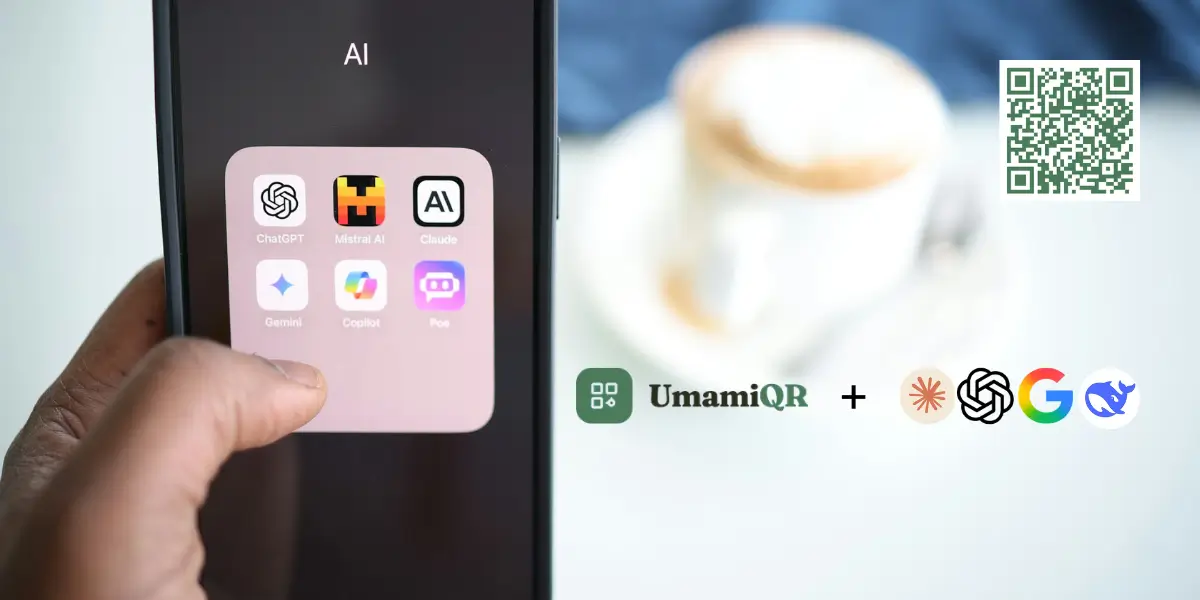
That's exactly what UmamiQR's AI integration makes possible. By exposing your restaurant data through a Model Context Protocol (MCP) server, any compatible AI assistant can read and manage your menus in real time, using nothing but natural language.
If you're curious how AI-powered menu management fits into the bigger picture, read about why your restaurant needs a digital menu in 2026.
What is MCP?
MCP — the Model Context Protocol — is an open standard created by Anthropic that allows AI assistants to securely connect to external tools and data sources. Think of it as a universal plug that lets an AI "reach into" your systems and take action on your behalf.
Instead of you navigating a dashboard, the AI does it for you — all through conversation.
UmamiQR supports MCP out of the box. Once you connect your AI assistant, it can:
- Create, update, and delete menu items
- Manage categories and menus
- Set dietary tags and price variants
- Update your location details and opening hours
- Generate QR codes on demand
Step 1: Get Your MCP Server URL from UmamiQR
First, log in to your UmamiQR dashboard and navigate to:
AI Integration
You'll see a form with one field: AI Assistant Name. Give it a descriptive name — this helps you identify which assistant the connection belongs to. For example:
Claude DesktopQwen CodeMy AI Assistant
Once you enter a name and save, UmamiQR will generate a unique MCP Server URL for you. It will look something like this:
https://umamiqr.com/mcp?token=YOUR_UNIQUE_TOKEN
Copy this URL — you'll need it in the next step. Keep it private, as it grants full access to manage your restaurant data.
Step 2: Connect Your AI Assistant
Different AI clients connect to MCP servers in slightly different ways. Here's how to set it up for the most popular ones.
Claude Desktop / Claude.ai
Go to Settings → Integrations → MCP Servers and add a new server with your URL. Claude will automatically discover all available tools.
Claude Code (CLI)
Run this command in your terminal:
claude mcp add UmamiQR https://umamiqr.com/mcp?token=YOUR_UNIQUE_TOKEN
Or add it manually to ~/.claude/claude_mcp_config.json:
{
    "mcpServers": {
        "UmamiQR": {
            "type": "url",
            "url": "https://umamiqr.com/mcp?token=YOUR_UNIQUE_TOKEN"
        }
    }
}
Qwen Code (CLI)
Run this command:
qwen mcp add UmamiQR https://umamiqr.com/mcp?token=YOUR_UNIQUE_TOKEN --transport http
Or add it manually to ~/.qwen/settings.json:
{
    "mcpServers": {
        "UmamiQR": {
            "url": "https://umamiqr.com/mcp?token=YOUR_UNIQUE_TOKEN",
            "httpUrl": "https://umamiqr.com/mcp?token=YOUR_UNIQUE_TOKEN",
            "transport": "sse"
        }
    }
}
Cursor / Cline / Other MCP Clients
Most MCP-compatible clients follow the same pattern — add a new MCP server with your URL. Refer to your client's documentation for the exact steps.
Step 3: Start Managing with Plain Prompts
Once connected, your AI assistant has full access to your UmamiQR restaurant. Here are some real examples of what you can do just by chatting:
Add a new item
"Add a new item to the Eggs & Benedicts category in the All-Day Brunch menu — Avocado Benedict, $15, vegetarian and gluten-free, with a Regular and a Add Smoked Salmon variant."
Update pricing
"Update the price of the Cold Brew to $5 for black and $5.50 for oat milk."
Set dietary tags in bulk
"Tag all smoothies as vegan and gluten-free."
Create a seasonal menu
"Create a new menu called Summer Specials, active from June 1st to August 31st, with categories for Cold Drinks, Frozen Treats, and Light Bites."
Generate a QR code
"Generate a QR code for my menu."
Update location details
"Update our opening hours to Monday–Friday 8am–4pm and Saturday–Sunday 9am–5pm."
The AI handles everything — reading your current data, making the right API calls, and confirming what was done. You just describe what you want in plain language.
Why This Is a Game Changer for Restaurant Owners
Traditional menu management means logging in, navigating menus, filling in forms, and saving — for every single change. With AI integration, that workflow collapses into a single conversation.
Speed. Changes that used to take 10 minutes of dashboard work now take 30 seconds.
Bulk operations. Want to add dietary tags to all 22 items at once? Just ask. The AI will loop through every item and update them in one go.
Natural language. You don't need to know which screen to navigate to or which field to fill in. You just say what you want.
Always in context. The AI can read your current menu state before making changes, so it never overwrites something accidentally without knowing what's already there.
A Note on Security
Your MCP Server URL contains a private access token. Treat it like a password:
- Don't share it publicly or commit it to a git repository
- Use one connection per AI client so you can revoke individual ones if needed
- You can regenerate your token anytime from the UmamiQR dashboard under AI Integration
Supported AI Assistants
UmamiQR's MCP server works with any client that supports the Model Context Protocol, including:
- Claude (Claude.ai, Claude Desktop, Claude Code)
- Qwen Code
- Cursor
- Cline (VS Code extension)
- Zed Editor
- And any other MCP-compatible assistant
The MCP standard is growing fast — as more AI tools adopt it, your UmamiQR integration will work with them automatically, with no changes needed on your end.
Get Started Today
- Log in to your UmamiQR dashboard
- Go to AI Integration
- Name your assistant and copy your MCP Server URL
- Add it to your AI client of choice
- Start managing your menu by just having a conversation
Your restaurant menu, managed the way it should be — by talking.
Create your free digital menu with UmamiQR →
Frequently Asked Questions
Is my restaurant data safe with MCP?
Yes. Your MCP Server URL contains a private access token that acts as your authentication key. Only AI assistants you explicitly connect to can access your data. You can revoke individual connections or regenerate your token at any time from the UmamiQR dashboard.
Do I need to know how to code to use AI menu management?
Not at all. If you can write a simple text message, you can manage your menu. The AI handles all the technical work — reading your current menu, making the right API calls, and confirming what was changed.
Which AI assistants work with UmamiQR?
Any AI assistant that supports the Model Context Protocol (MCP) works with UmamiQR. This includes Claude (Claude.ai, Claude Desktop, Claude Code), Qwen Code, Cursor, Cline, Zed Editor, and any other MCP-compatible client.
Can I use multiple AI assistants with the same restaurant?
Yes. We recommend creating one MCP connection per AI client (e.g., "Claude Desktop" and "Cursor" as separate connections). This way, you can revoke individual connections without affecting the others.
UmamiQR is a digital menu platform built specifically for independent restaurants, cafés, and food trucks. Manage your menu with AI, get a print-ready QR code, and go live in minutes — for free. Learn more about how it works or explore all the features.